Browse all articles
See competitor price changes
Track competitor price changes in Pricemind: see which prices a competitor changed, the old and new price and when, and export the list to Excel.
Updated
On this page
Pricemind is competitor price monitoring software for online shops. It tracks your competitors' prices and sends you a daily email with the changes.
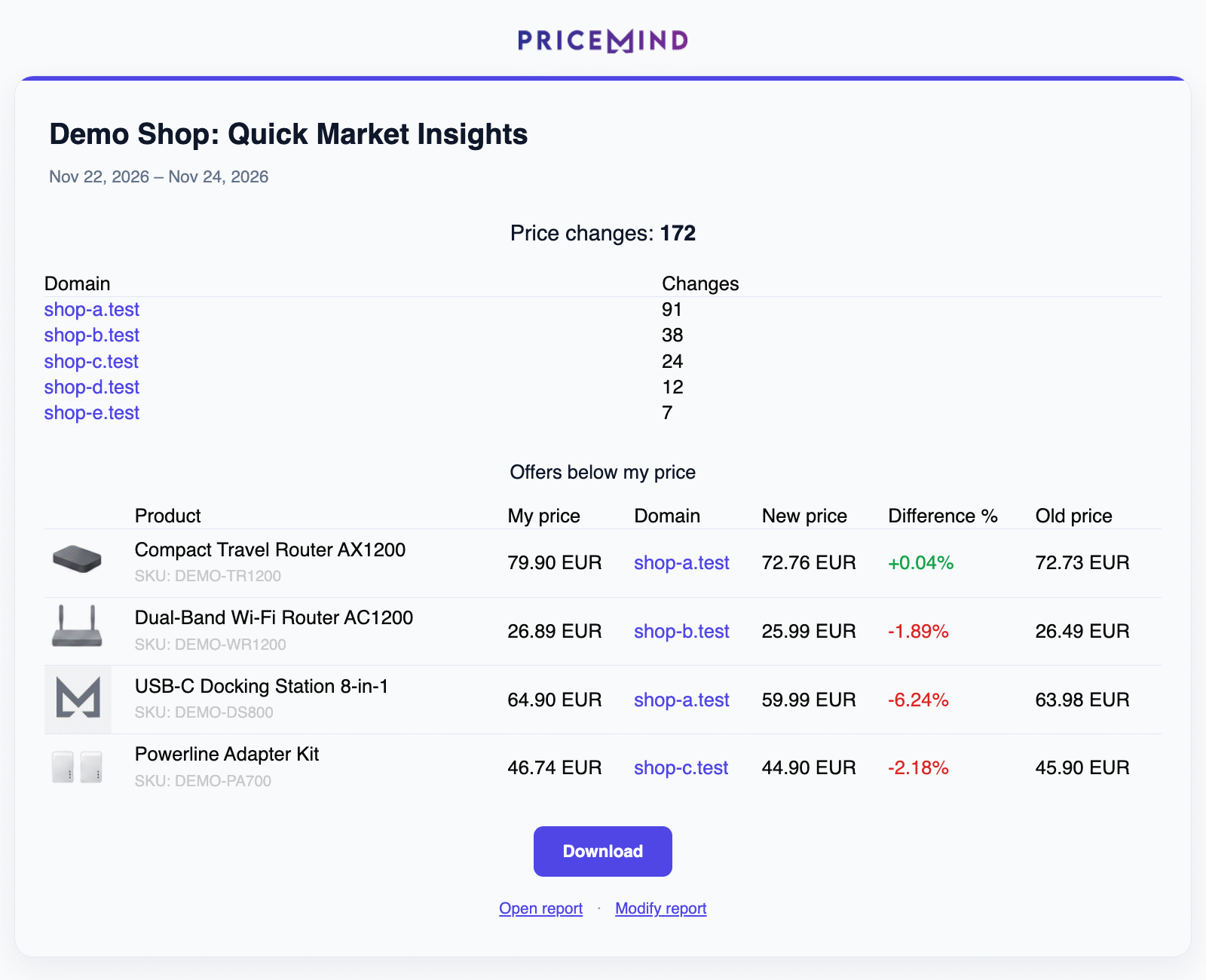
The daily email tells you how many prices each competitor changed, for example shop-a.test 91. This guide shows you how to see those competitor price changes in Pricemind. You will see each product, the old price, the new price and when the price changed. You can also download the list to Excel.
What the number in the email counts
- Price changes, not products. If a competitor changed the price of one product twice, the email counts 2.
- The last 48 hours. The count covers the 48 hours before the email was sent, not only today.
- Price rises and price drops. Both are counted.
- Only products you track. A change counts only when Pricemind has matched the competitor's product to one of your products.
- Prices only. Changes in stock are not counted.
See one competitor's price changes
-
Sign in to Pricemind at app.pricemind.io.
-
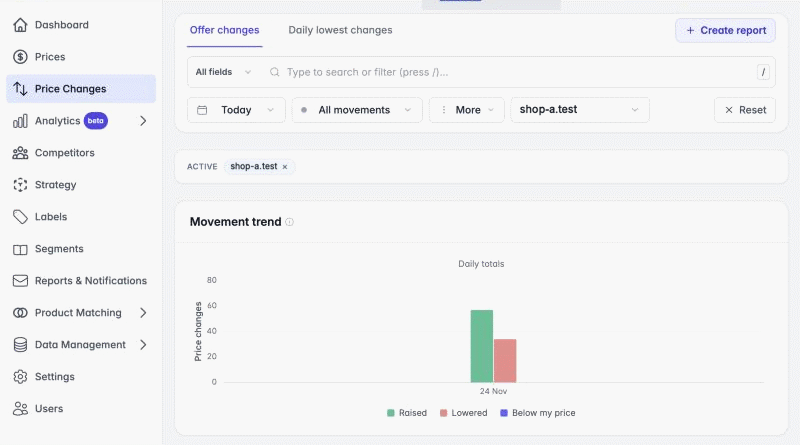
In the menu on the left, select Price Changes. The Price movements page opens.
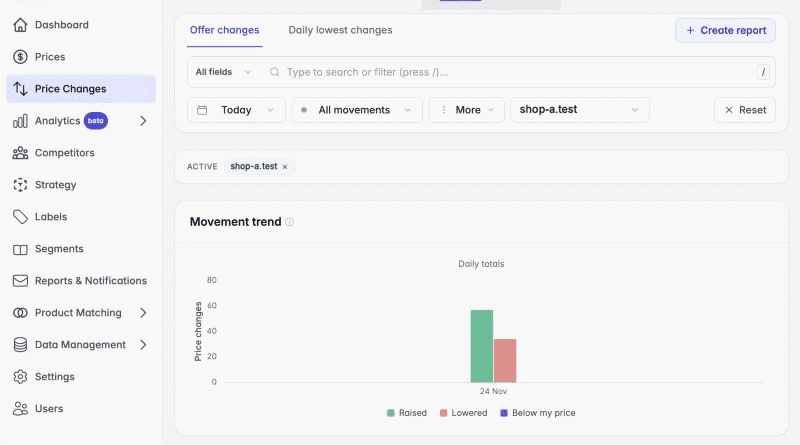
Price Changes is in the menu on the left. -
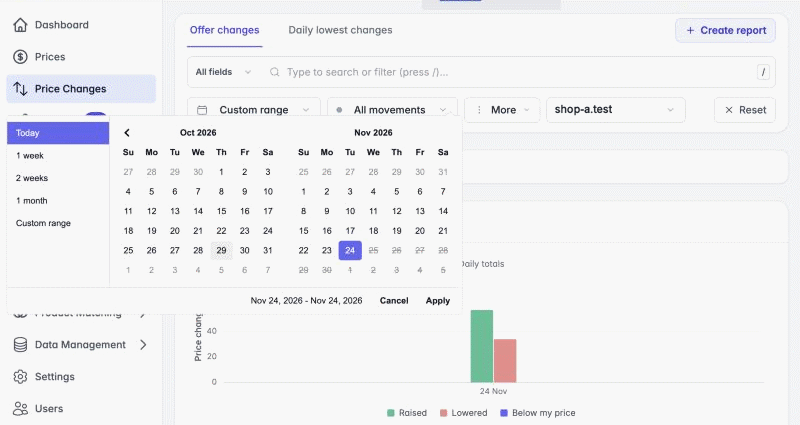
Select the period box. When the page opens, it shows 2 weeks.
-
Select Custom range. A calendar opens.
-
Select yesterday's date, then today's date.
-
Select Apply. The page now covers the same two days as the email.
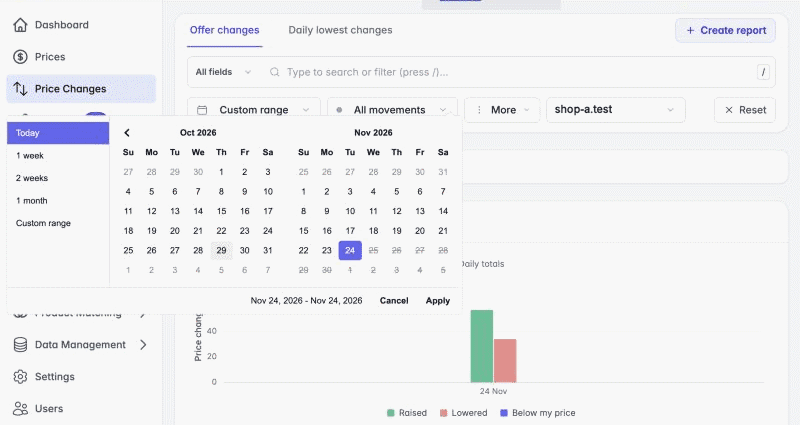
Choose Custom range, then pick the first and the last day in the calendar. -
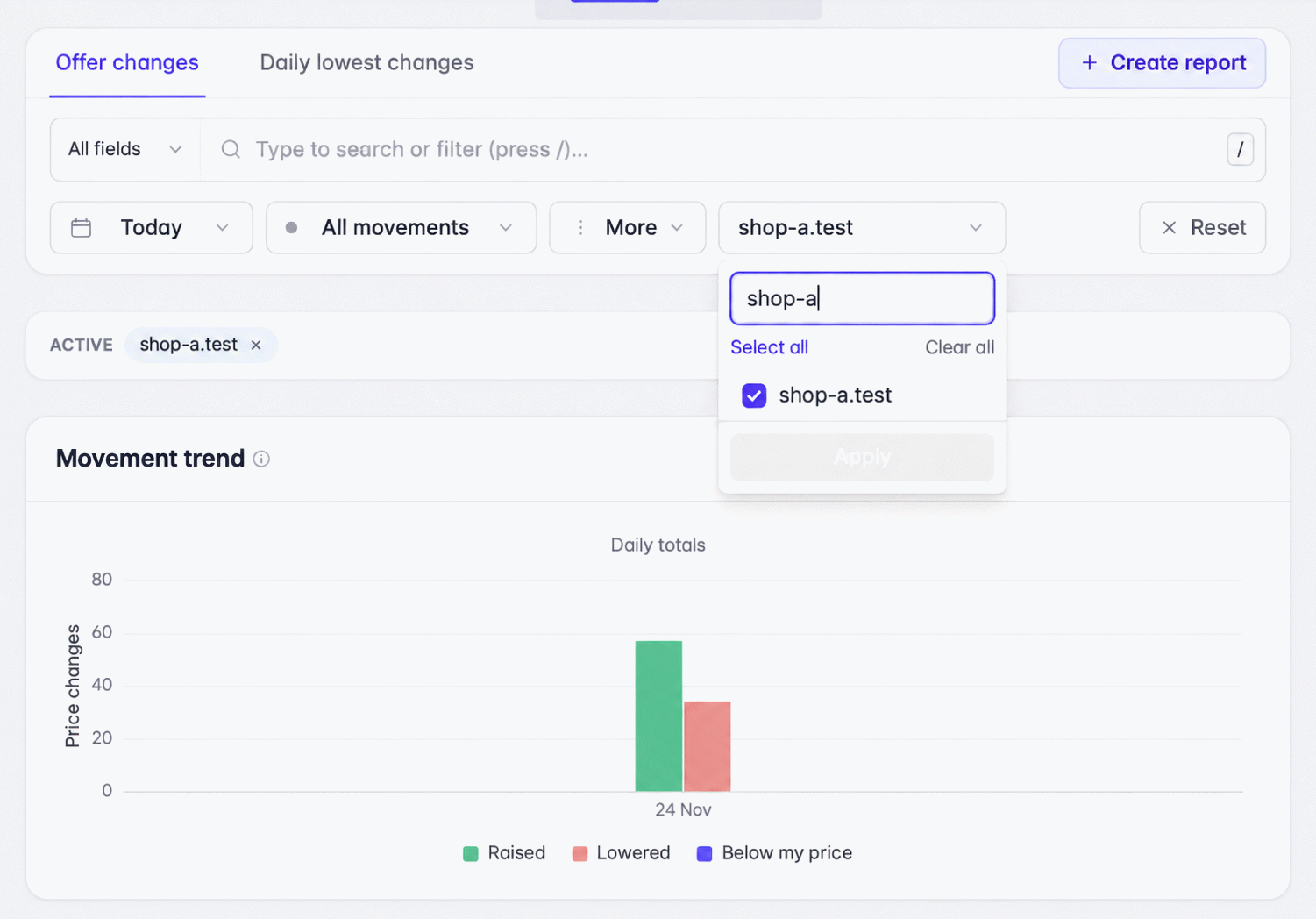
Select the box that says All competitors.
-
In Search competitors, type the competitor's name, for example
shop-a. -
Tick shop-a.test.
-
Select Apply. The page now shows only this competitor's price changes.
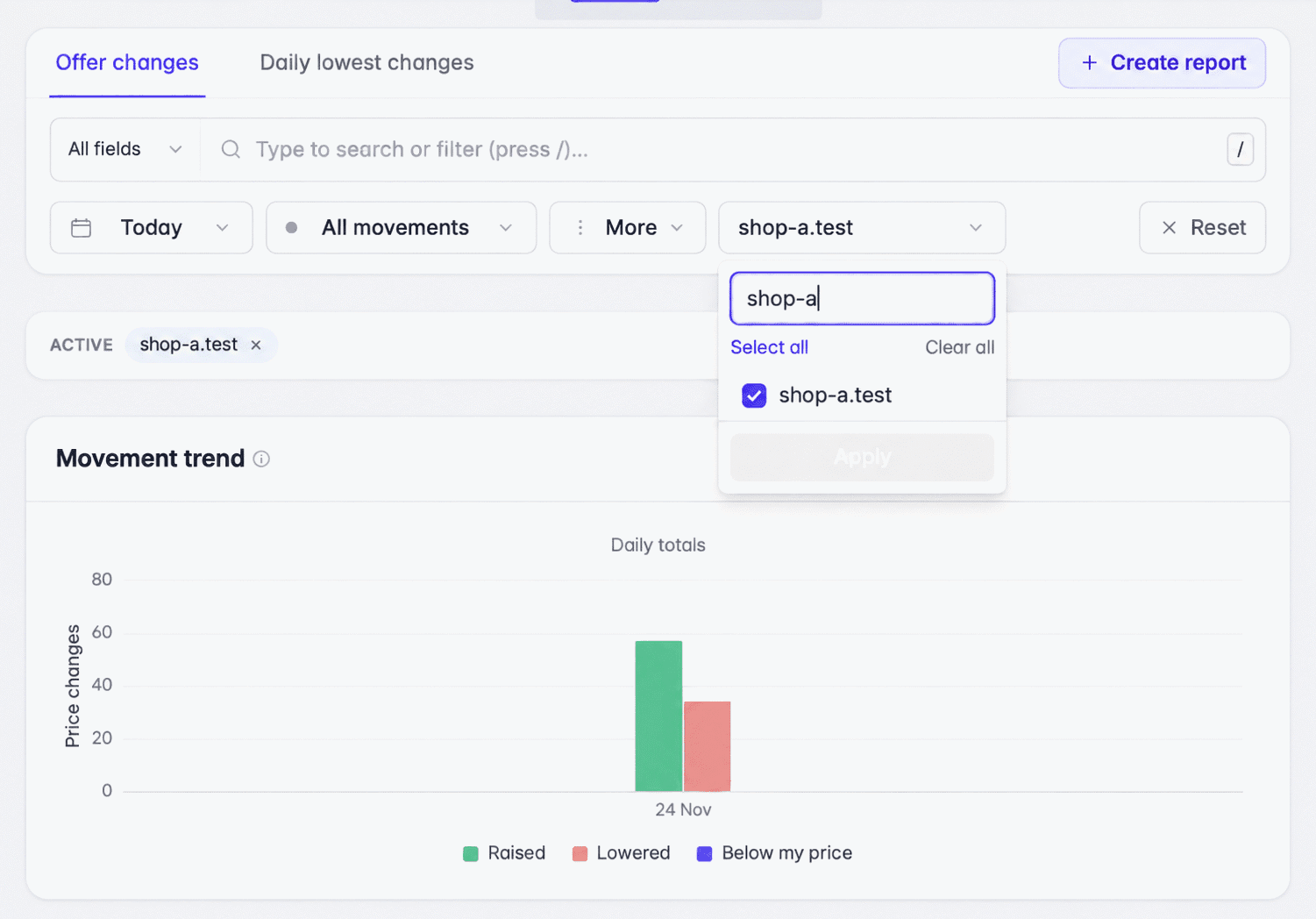
Search for the competitor, tick it, then select Apply.
Read the price changes list
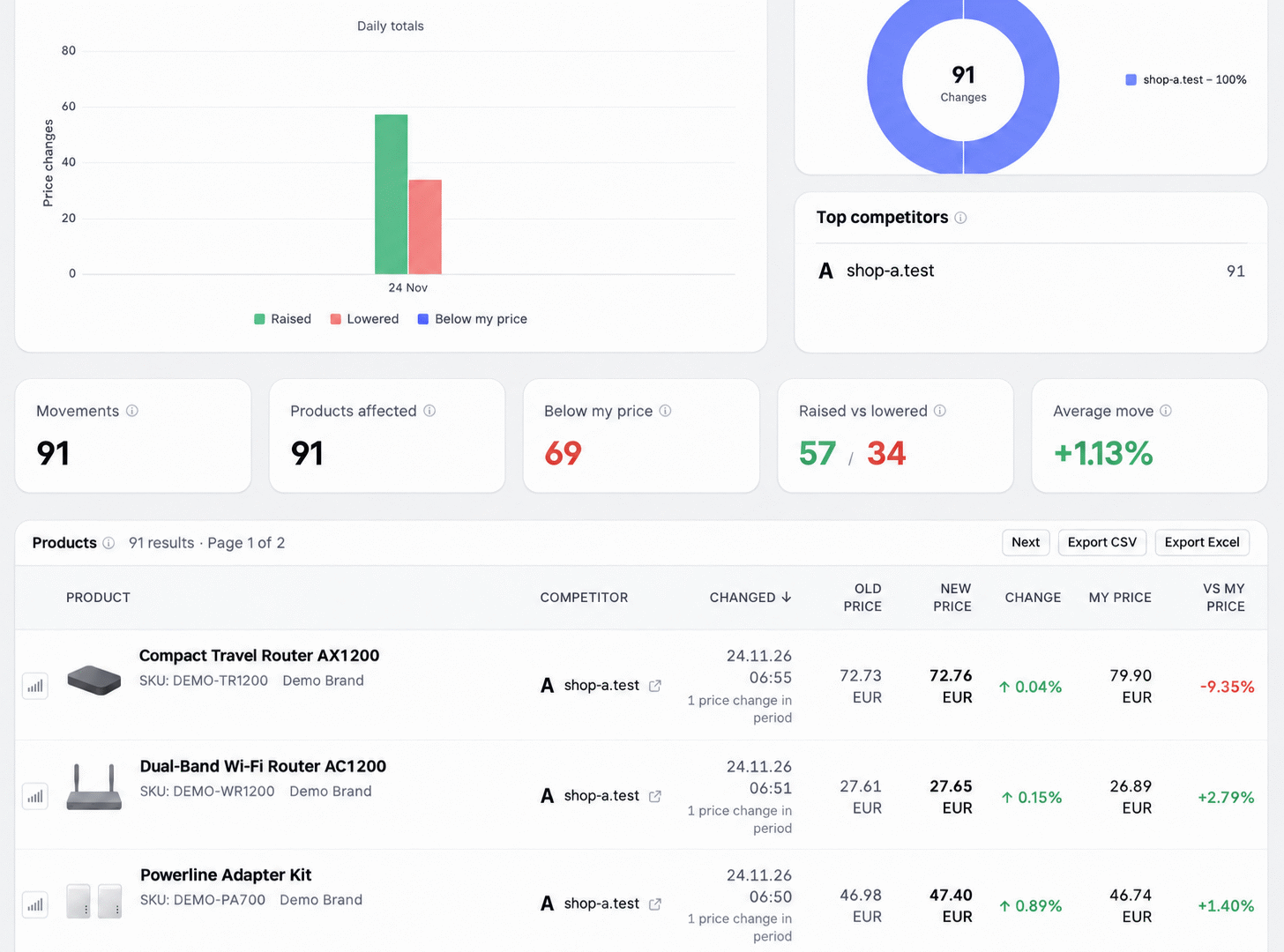
The boxes at the top give you the totals:
- Movements is the number of price changes the competitor made.
- Products affected is the number of your products with at least one price change.
- Below my price is the number of the competitor's offers that are now cheaper than your price.
- Raised vs lowered shows how many prices went up and how many went down.
- Average move is the average price change in percent. A plus sign means prices went up on average.
Below them, the Products table has one row for each of your products. Each row shows:
| Column | What it shows |
|---|---|
| Product | Your product. |
| Competitor | The competitor. Select it to open their product page. |
| Changed | When the price last changed. |
| Old price | The price before the change. |
| New price | The price after the change. |
| Change | How much the price went up or down. |
| My price | Your current price. |
| Vs my price | How the competitor's new price compares with yours. |
The newest changes are at the top. To sort the table by another column, select the column name.
If the competitor changed a price more than once, the row tells you how many times, for example 2 price changes in period. To see every change for that product, select the chart button at the start of the row. Its name is Open price history.
Download the list to Excel
-
Select Export Excel above the table. For a CSV file, select Export CSV instead.
-
Wait for the message Export is ready.
-
In the message, select the here link. The file downloads.
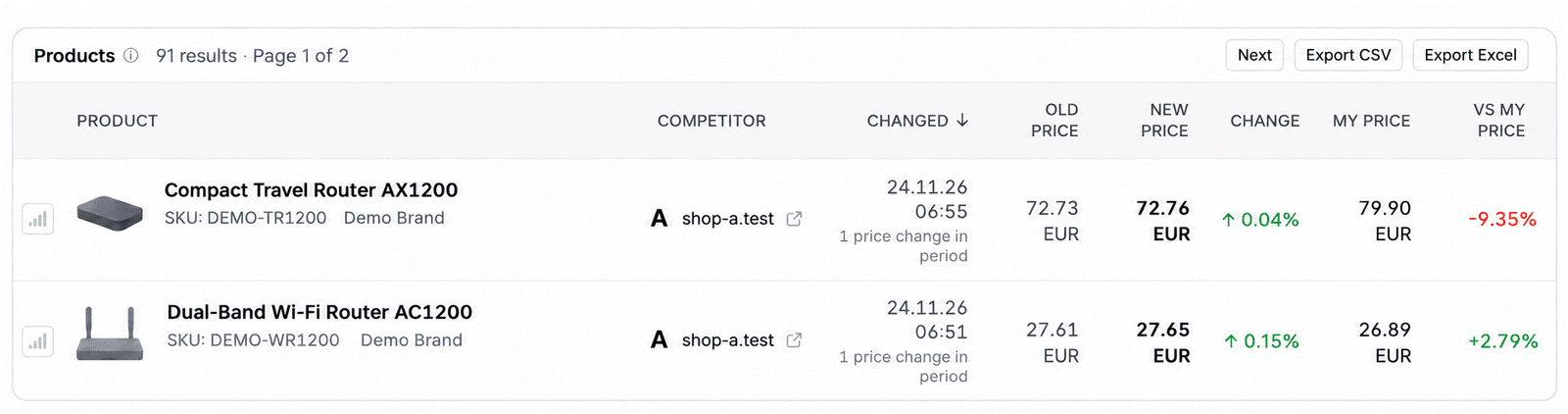
The export buttons are above the table, on the right.
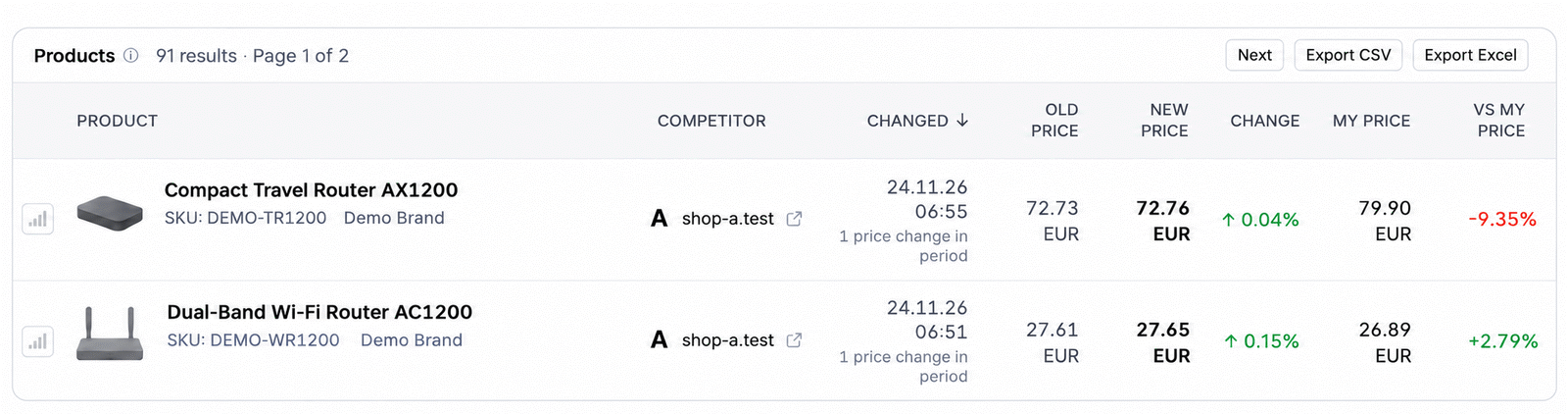
The file uses the same period and competitor as the page. It has one row for each price change. If the competitor changed a price twice, the product appears on two rows.
Why the numbers can differ from the email
The email and the page count in slightly different ways, so small differences are normal.
- The email counts the 48 hours up to the moment it was sent. The page counts whole days.
- The table shows one row per product, and one row can hold several changes. The Movements box shows the number of changes.
Get a competitor price change report by email
Pricemind can also send you this list as a file on a schedule. Only company administrators can set this up. If you do not see Create report, ask your administrator or contact us.
- On the Price movements page, choose the competitor as described above.
- Select Create report at the top of the page. The new report starts with the competitor you chose.
- Under Reporting period, choose Previous day or Previous 48 hours.
- Under File format, choose the Excel format.
- Check Recipients and delivery and When to deliver.
- Select Save report.
Related guides
- Price index calculation: turn all these price comparisons into one number and see whether you are cheaper or more expensive than the market.